

How to Install IPTV on LG TV UK
No revisions have been recorded for this guide. Our revision records begin in July 2026; changes made before then were not recorded.
To install IPTV on LG TV you use LG WebOS and the LG Content Store (or your TV’s app hub, depending on model). This guide covers a straightforward path: find a compatible IPTV player app, add your subscription details, and optimise your network.
For more help, see our IPTV setup guide and IPTV troubleshooting.
Quick Answer
- LG Content Store → search IPTV Smarters Player (not Pro on most LG sets)
- Open app → Accept terms → Xtream Codes API → server URL, username, password
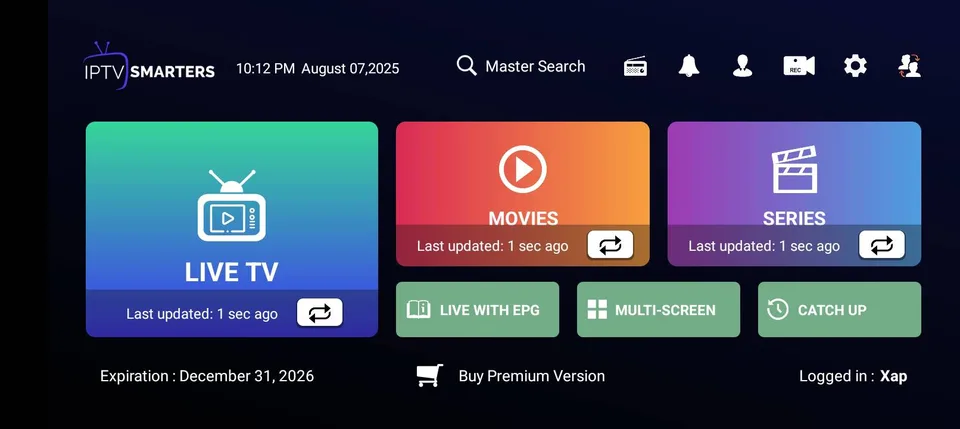
- Open Live TV after login; wait for channel groups to load
- If you see Failed to Authorize, ask your provider about Smarters on WebOS
- Full walkthrough: install IPTV on LG TV
Why LG WebOS Works for IPTV
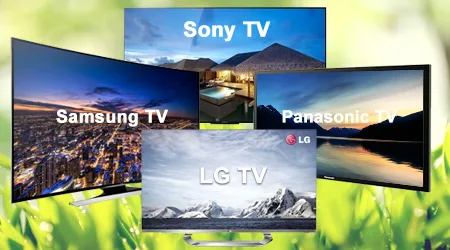
LG smart TVs run WebOS with a built-in app store, so you can install IPTV player apps without extra hardware when the app you need is listed. Older or region-locked models may have fewer choices—in that case an external device is a practical option. See our best device for IPTV UK guide.
Your provider supplies credentials when you subscribe. A free trial lets you test before committing.
IPTV Smarters Player on LG — setup flow
Most UK LG TVs use IPTV Smarters Player from the Content Store. The flow is: install → launch → accept terms → Xtream Codes API → enter server URL, username and password → open Live TV.
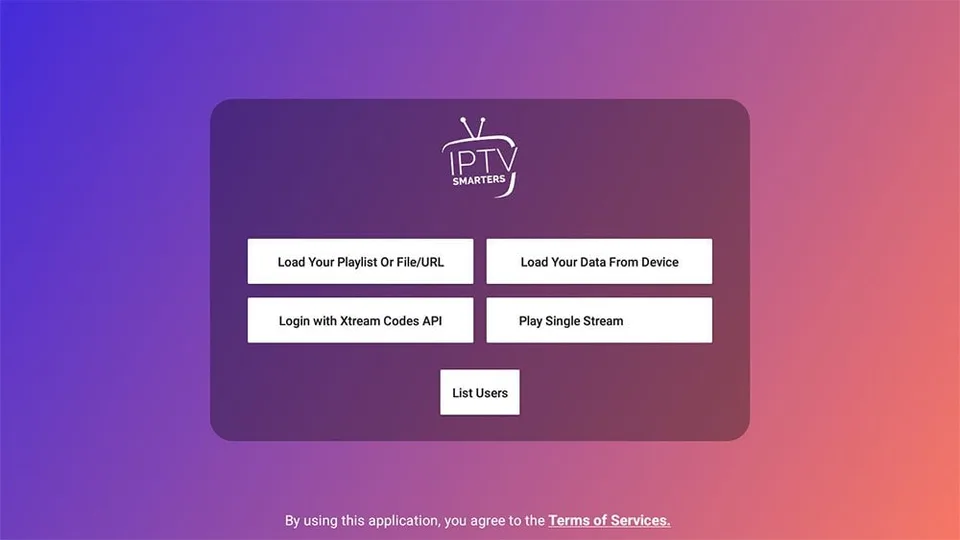
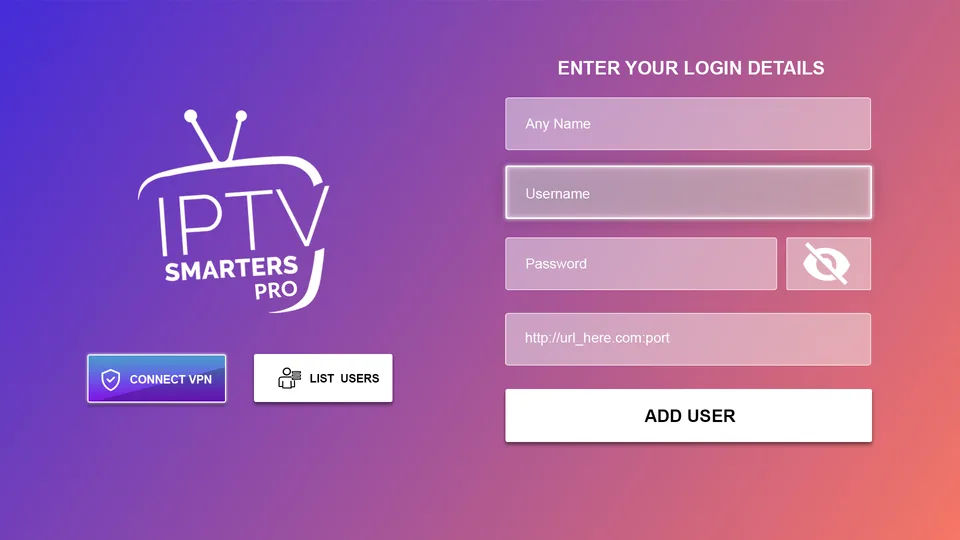
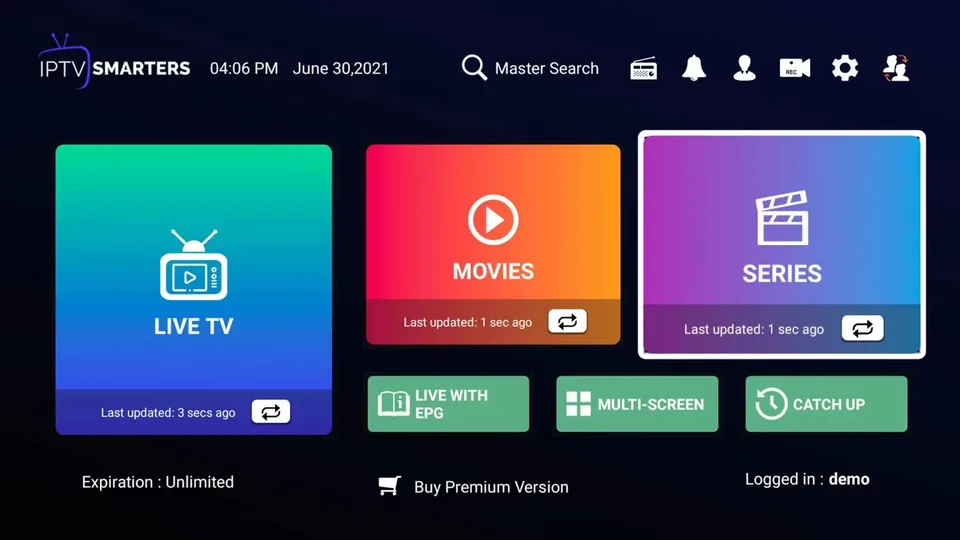
Failed to Authorize? On LG and Samsung, Smarters sometimes blocks login until your provider registers the server URL with the app vendor — even with correct credentials. Contact your provider or see our LG install walkthrough for checks and alternatives.
Field-by-field help: IPTV login details explained.
Other IPTV player apps on LG
If Smarters is missing or will not authorize, your provider may suggest Smart IPTV, IBO Player or SS IPTV — each uses a different login style (MAC activation, playlist URL, etc.). Match the app to what your provider actually supports.
For a wider comparison of smart TV app types, see our best IPTV app for smart TV guide.
Network Factors
Ethernet is usually more stable than Wi-Fi for HD and 4K. If you must use Wi-Fi, place the router reasonably close or use 5 GHz where supported. See our best internet speed for IPTV UK guide.
If streams stutter, see how to fix IPTV buffering UK and IPTV keeps freezing.
Device Factors
Older LG TVs may have less RAM or slower processors; 4K can be demanding. Close unused apps, clear cache where the IPTV app allows it, and ensure firmware is up to date. If performance is still poor, a dedicated streaming device often helps.
Next Steps
If channels do not load, double-check credentials and subscription status. Restart the TV and router. See IPTV not loading channels for more fixes.
FAQ
Related Guides
- Install IPTV on LG TV— Detailed LG WebOS setup
- How to Install IPTV on Smart TV— General smart TV guide
- How to Install IPTV on Samsung TV— Samsung step-by-step
- IPTV Not Working on LG TV— LG troubleshooting
- Best IPTV App for Smart TV— App options
- IPTV Setup Guide— Installation overview
- IPTV Not Loading Channels— Channel loading fixes
- IPTV Trial UK— Try before you buy