

MAG box setup: portal-based IPTV vs the alternatives
No revisions have been recorded for this guide. Our revision records begin in July 2026; changes made before then were not recorded.
MAG boxes (Infomir 2xx/3xx/4xx/5xx) are still in many UK living rooms, but the way they connect to IPTV is unusual. There is no app store and no M3U field by default — instead the box loads a portal URL and your provider whitelists the box’s MAC address. This guide compares MAG to the app-based devices people often switch between, then walks through the actual portal setup.
Notes are based on MAG 254, 322 and 524 boxes · older MAG 2xx hardware may behave differently and some providers no longer support the portal system on MAG 4xx/5xx.
MAG vs Firestick vs Android TV — honest comparison
| Aspect | MAG box | Firestick | Android TV box |
|---|---|---|---|
| Setup style | Portal URL + MAC whitelist | Player app + Xtream/M3U | Player app + Xtream/M3U |
| Provider must support it | Yes — Stalker/portal explicitly | Almost always | Almost always |
| App flexibility | Limited — built-in player | High — Smarters, TiviMate (sideload), XCIPTV | Highest — full Play Store |
| Network | Ethernet preferred; Wi-Fi model-dependent | Wi-Fi default, Ethernet via adapter | Wi-Fi + Ethernet onboard |
| VPN onboard | No — needs a VPN router | Yes (app) | Yes (app) |
| Typical lifespan | Long, but firmware support tapers | 3–4 years before storage feels tight | 4–6 years |
Older MAG hardware tends to be the most stable on a single provider, but the least flexible when switching. If you change providers often, an app-based device is usually less hassle.
Before you connect anything
- Confirm with your provider that they still support MAG portal on your model.
- Find the MAC address on the sticker underneath the MAG box (it starts
00:1A:79…). - Save the MAC to your provider dashboard or send it to support so they can whitelist it.
- Have your portal URL ready — it usually ends in
/c,/portal.phpor similar.
Step 1 — Physical setup
Connect HDMI from the MAG to the TV, then Ethernet from the MAG to the router. Wi-Fi is supported on some models with the official Infomir USB dongle, but Ethernet is what providers test against and it removes a whole class of intermittent issues from day one.
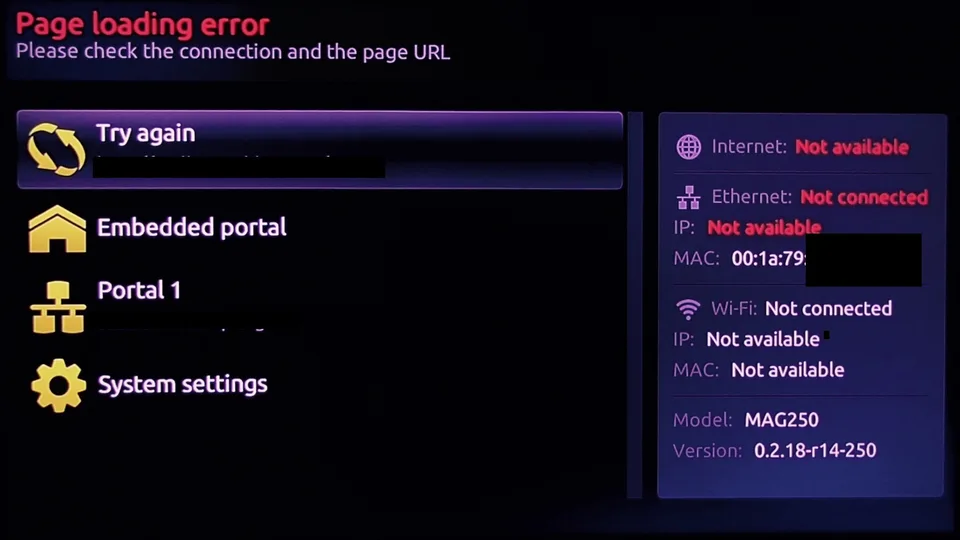
Step 2 — Open the embedded portal
Power the box on. After the splash, navigate to Settings → System Settings → Servers → Portals (path varies slightly by firmware). Set Portal 1 name to anything memorable and paste the Portal 1 URL exactly as your provider supplied it.
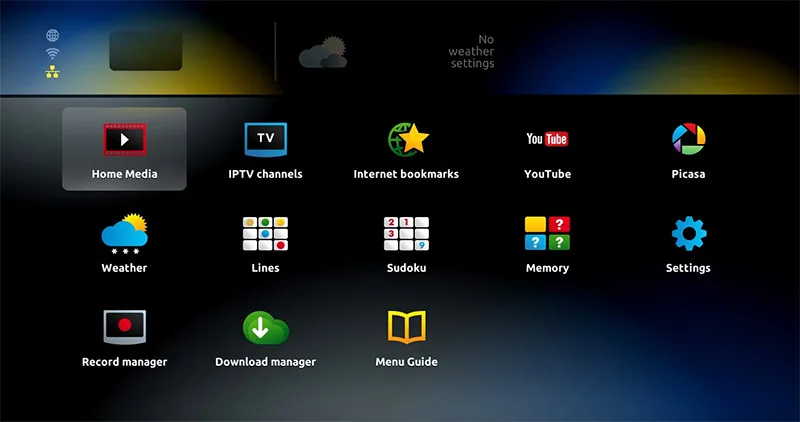
Step 3 — Reboot, then load the portal
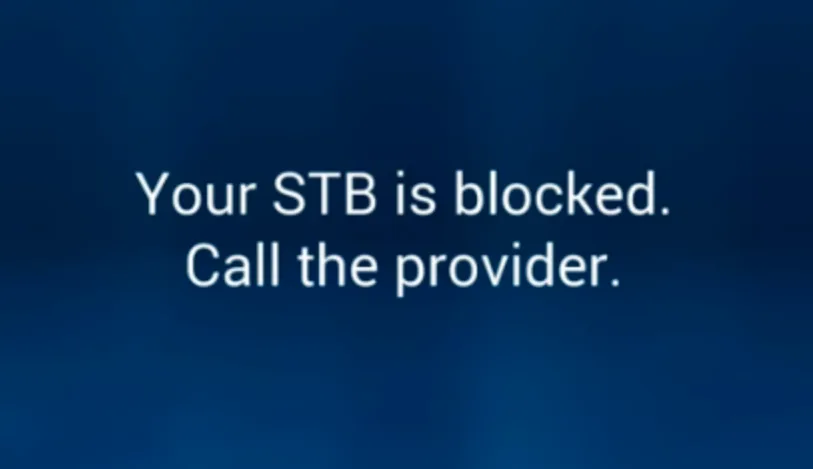
After saving, reboot the box (power cycle is more reliable than the menu “Restart Portal”). The MAG will contact your provider, identify itself by MAC and load the channel list. If you see “STB Blocked” or a plain black screen instead, the MAC is not whitelisted on the provider side or the portal URL has a typo — see the troubleshooting section below.
Step 4 — (Optional) M3U fallback on MAG 4xx/5xx
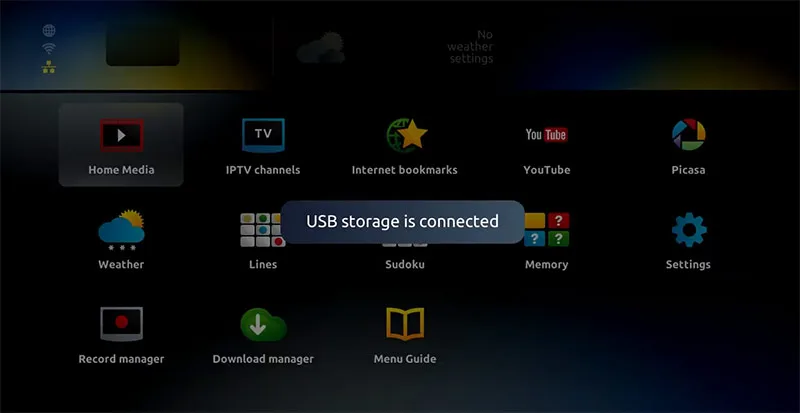
Many providers no longer support the portal protocol on MAG 4xx/5xx. The workaround is loading an M3U file from a USB stick via Embedded Portal → Home Media → USB. It is less elegant — no EPG, no catch-up — but it keeps an older MAG usable when the portal route is gone.
If the portal will not load
- Re-check the MAC address on your provider dashboard, character by character, against the sticker on the back of the MAG.
- Re-check the portal URL — leading
http://, trailing slash, port number; all matter. - Reboot router first, wait two minutes, then reboot the MAG. The order matters because the box pulls the portal as part of its boot sequence.
- If everything else looks right and a “Page Loading Error” appears, swap the Ethernet cable — see the cable/Ethernet checks.
- Still blocked? Some UK ISPs throttle or block IPTV portal traffic; testing on a phone hotspot for ten minutes confirms or rules that out without changing your subscription.