

IPTV black screen: what the symptom actually means
No revisions have been recorded for this guide. Our revision records begin in July 2026; changes made before then were not recorded.
A black screen is a confusing symptom because it can be the TV, the cable, the streaming device, the IPTV app, or the line itself. The page below uses a glossary-first approach: define what each kind of black screen looks like, then point you at the right fix path for that one.
Notes apply to Fire OS, WebOS and Tizen streaming setups, and to MAG/STB hardware where called out. Older MAG boxes can behave differently — see the dedicated MAG section below.
Glossary — which “black screen” is yours?
- No signal black screen
- TV shows a small banner like “No Signal — HDMI 1”. The TV is fine; the streaming device is either off, on the wrong port, or not negotiating HDMI properly.
- App-running black screen
- You can see the app menu / channel list, but selecting a channel shows a black window where video should be. Audio sometimes plays. The app is running; the stream itself is failing to decode.
- All-channels black screen
- Every channel is black. The remote still works, the EPG still loads. Almost always a line or provider-side problem rather than a device problem.
- STB Blocked black screen (MAG)
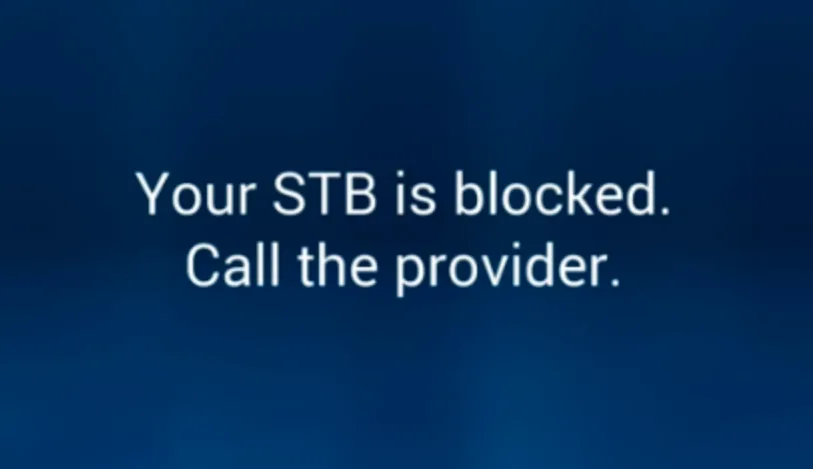
- MAG boxes show either “STB Blocked” or, on newer firmware, a plain black screen meaning the same thing: the box’s MAC is not whitelisted, or the portal URL is wrong, or the line is expired.
No-signal black screen — start here
Confirm the TV is on the correct HDMI input. Reseat the cable at both ends (TVs are particularly fussy about HDMI handshakes; a half-seated cable is enough to produce a stable black screen with no error). Try a different HDMI port on the TV; some sets reserve one port for ARC/eARC that behaves oddly with streaming devices.
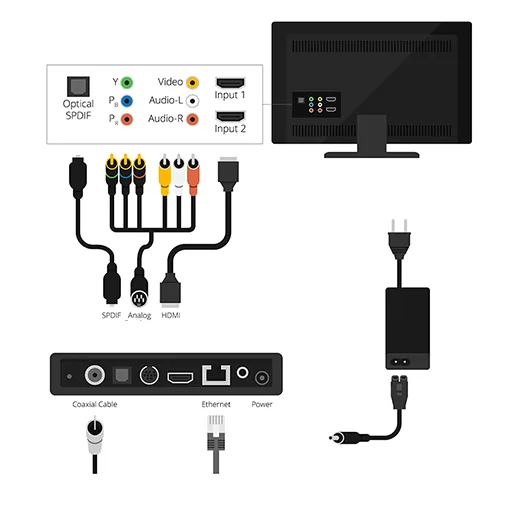
Help callout — power-cycle order
Always reboot the router first, wait two minutes, then power the streaming device. Most “black screen after I went on holiday” cases clear up after a clean cycle in this order — the streaming device pulls DHCP, then the IPTV app re-authenticates against a freshly woken router.
App-running black screen
The app is reachable but video does not render. Try three things, in this order:
- Open a different channel from the same provider — a single bad stream is common.
- Force-close the app and re-open it; clear cache (not data) if the symptom persists.
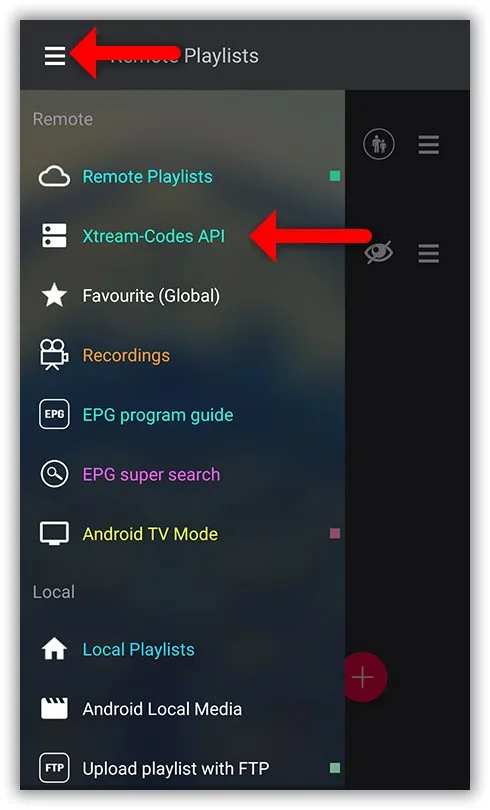
- Try a different IPTV player with the same credentials — Smarters, TiviMate, XCIPTV all handle decoding slightly differently. If only one app shows black, the app is at fault, not the line.
All-channels black screen
Every channel black, with the rest of the app responsive, points at the line itself: expired subscription, simultaneous-connection cap hit, MAC/credentials no longer matching the dashboard, or an ISP-level block on the provider’s server IPs. Test the same credentials on a desktop player like VLC; if VLC also fails to play any channel, the line is the problem — not your TV. The login-failure checks and server-down checks cover the next steps.
MAG / STB Blocked black screen
MAG hardware is its own world. The classic “STB Blocked” banner has been replaced on many newer units by an unlabelled black screen that means the same thing. Causes are almost always one of: MAC not whitelisted, portal URL typo, expired line, or ISP blocking. Older MAG 2xx units may also fail because the provider has dropped support for that hardware generation entirely.
The full MAG-specific recovery path lives in the MAG portal setup guide.
Network-induced black screen
A connection too slow to sustain the bitrate sometimes shows as a brief black screen rather than a buffering icon. If the screen flashes black for a few seconds at channel-change and then plays, this is normal. If it stays black, run a speed test next to the device and review the speed targets, or work through the buffering test steps.