

Install IPTV on Firestick: step-by-step
No revisions have been recorded for this guide. Our revision records begin in July 2026; changes made before then were not recorded.
Most installs take under fifteen minutes if you already have login details from your provider. The steps below assume a standard player app from the Amazon Appstore; sideloading is only covered where the app is not listed.
Before you start
- Fire TV Stick or Fire TV with internet (Wi-Fi or USB Ethernet adapter).
- Username, password, and either a portal/server URL or M3U playlist link from your provider.
- At least 500 MB free storage—check Settings → My Fire TV → About → Storage.
- Fire OS up to date: Settings → My Fire TV → About → Check for Updates.
1. Install the player app
Open Find → Appstore, search for the app your provider recommends, and install. If it is not listed, enable Install Unknown Apps for Downloader (Settings → My Fire TV → Developer Options), then sideload the APK your provider documents—only from a source you trust.
Downloader shortcut: Smarters Player Pro
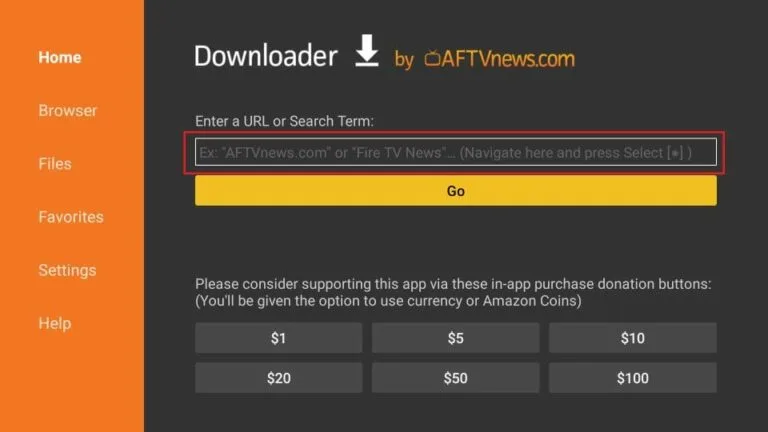
If your provider asks you to sideload IPTV Smarters Player Pro, open the Downloader app, go to the browser or URL field, and enter the short code below. Downloader will resolve it to the install page—check the app name and developer before you install.
6468112- Short codes are maintained on sites such as aftvnews.com— they can change; if
6468112stops working, search inside Downloader for "Smarters Player Pro" or ask your provider for an updated code or direct APK link. - Confirm the listing says Smarters Player Pro (or the exact name your provider gave you) before downloading—similar-looking apps are common.
- Only install APKs from sources you trust; your provider should match the app name on the install screen.
App options and login types: IPTV apps for UK devices.
2. Enter provider details
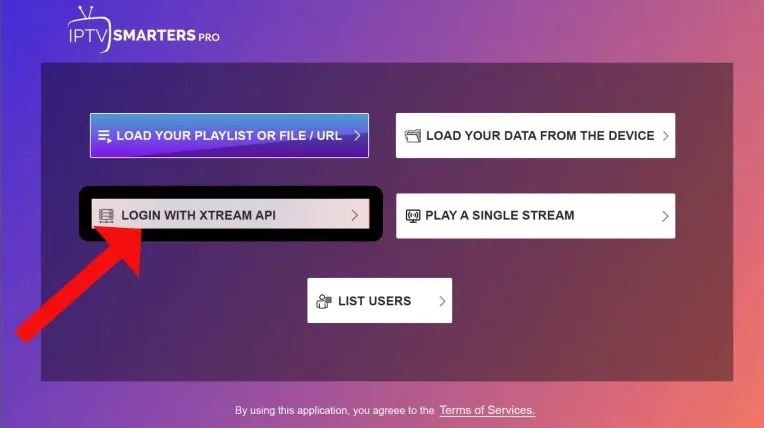
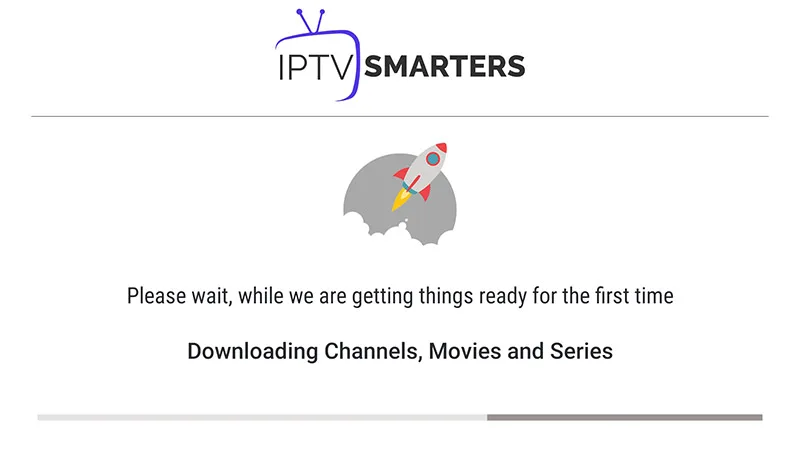
Open the app and add a user or playlist. Portal-style logins need server URL, username, and password. M3U setups need the full playlist URL—paste carefully, no trailing spaces. Save and wait for the channel list to refresh.
3. Test playback
Open three different channels—one HD sports if you watch sport, one UK main channel, one international. Note load time and whether audio stays in sync. If only one channel fails, it may be a stream issue; if none load, recheck login format.
Common mistakes on Firestick
- Using M3U fields when the provider sent Xtream portal details (or vice versa).
- Skipping the system update, then blaming the app when playback stutters.
- Leaving dozens of unused apps installed—cache and storage fill up.
- Testing only on 2.4 GHz Wi-Fi at the far end of the house.
When sideloading may not work
Very old Fire Stick models may block newer APKs. Corporate or child-profile restrictions can hide Developer Options. If sideload fails repeatedly, use an app from the official Appstore or switch to an Android TV box with Google Play. Buffering after a successful install is usually network-related—see buffering on Wi-Fi and Firestick troubleshooting.