

Firestick is buffering on IPTV: a triage flow, not a checklist
Corrected
Added per-stream bandwidth qualifiers.
Most “my Firestick is buffering” questions turn out to be one of four things. Instead of a flat list of fixes, the page below walks you through the diagnostic order an engineer would actually use, so you stop changing settings at random.
Tested on Fire OS 7 and Fire OS 8 (Fire TV Stick 4K and 4K Max) · works differently on Ethernet vs Wi-Fi, which the steps below take into account.
Read this first — symptom snapshot
The pattern of buffering tells you where to look:
- Short freeze every few minutes → almost always Wi-Fi or peak-time ISP load (jump to Triage A).
- Long buffering from the first second → usually the Firestick itself: storage, cache, decoder (Triage B).
- Only sport / 4K buffers → bitrate / source-side rather than your network (Triage C).
- Buffering only after 7 p.m. → broadband contention, see peak-time buffering.
Triage A — Wi-Fi and network
A1. Test next to the Firestick, not the router
A speed test on a phone held against the Firestick gives a far more honest number than one taken next to the router. Aim for at least 10–15 Mbps sustained for HD, more for 4K.
A2. Force 5 GHz, then re-test
If your router broadcasts both bands, connect the Firestick to the 5 GHz SSID when it is within line of sight. 2.4 GHz reaches farther but is congested with neighbours and IoT devices.
A3. Borrow a USB Ethernet adapter for one test
One smooth playback session on Ethernet effectively proves Wi-Fi is the bottleneck. Older Sticks on 2.4 GHz-only radios are particularly prone to this — see Ethernet vs Wi-Fi.
Triage B — Firestick itself
B1. Free up storage
Settings → My Fire TV → About → Storage. Keep at least 1–2 GB free. Below that, every decoder gets squeezed and HD streams pause to clear room.
B2. Clear cache on the IPTV player
Settings → Applications → Manage Installed Applications → choose your player → Clear Cache. Do not press Clear Data unless you want to re-enter credentials.
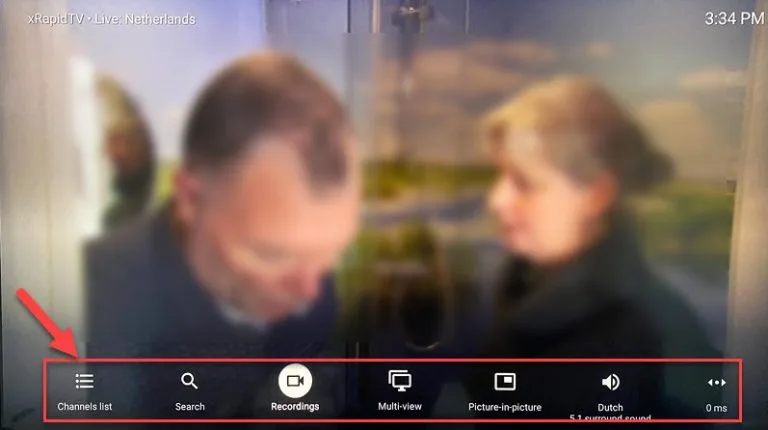
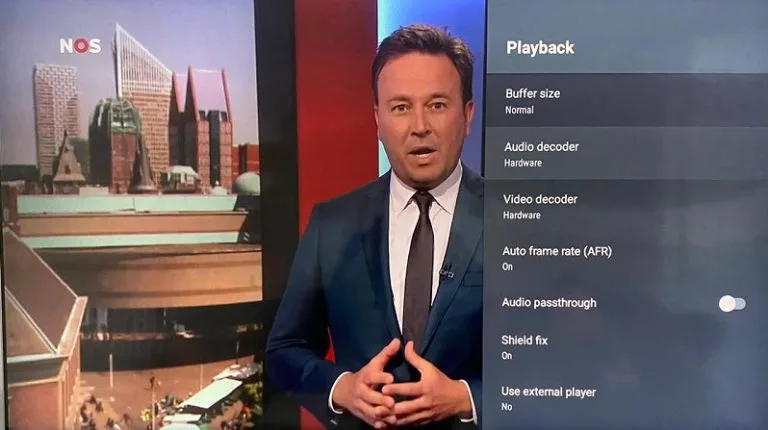
Inside most IPTV players you can also raise the buffer size — useful for marginal Wi-Fi. B3. Restart the right way
Unplug the Firestick and the router. Plug the router in first, wait two minutes, then power the stick. Order matters — the Firestick caches DHCP and a clean router boot avoids stale leases.
B4. Check Fire OS is current
Settings → My Fire TV → About → Check for Updates. Old Fire OS plus a new IPTV player is a common stutter combination.
Triage C — source & bitrate
If only certain channels buffer (typically sport, 4K, or late-night categories) the Firestick and Wi-Fi are usually fine. Open the same channel on a phone using mobile data — if it still buffers, the source feed is at capacity or down. A different channel from the same category should play cleanly when the source side is healthy.
Why the standard fixes sometimes do not help
Buffering that comes back after every fix is usually one of three things you cannot change from the Firestick: shared ISP capacity at peak time, a thin link between the stick and the router, or a stream provided at a higher bitrate than your line can sustain. The cure is upstream — see speed targets for IPTV and router settings worth changing.